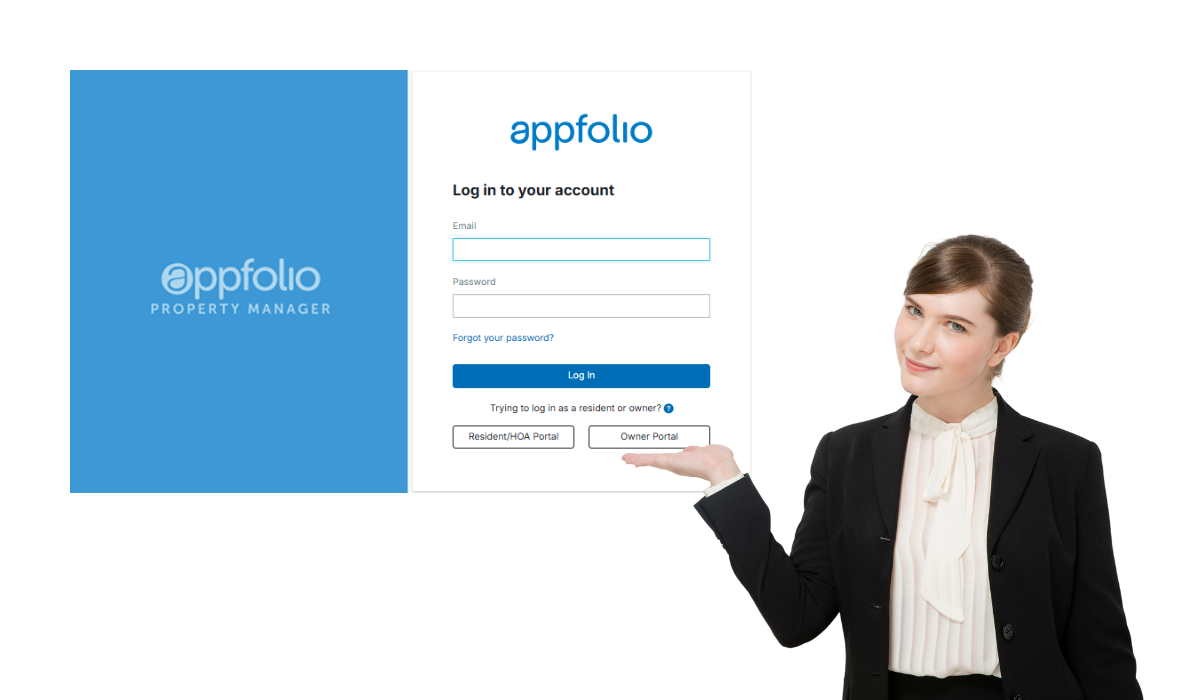
Welcome to the GPS Renting Tenants Online Portal Guide. This portal is your fast, secure, and convenient way to manage your rental experience—whether it’s making payments, submitting maintenance requests, or reviewing important documents.
Getting Started with the Online Portal
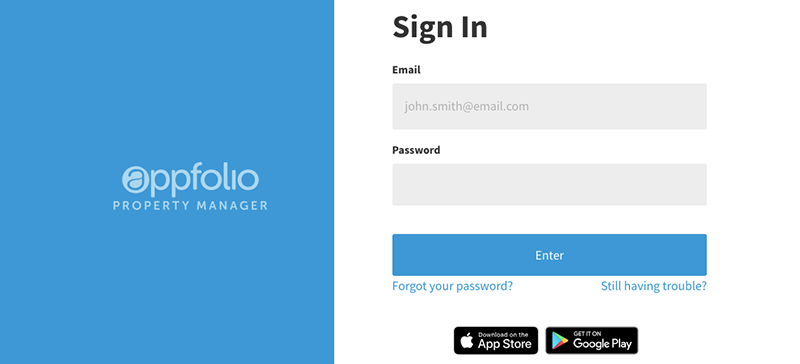
Activate Your Account
You’ll receive an activation email or text message from GPS Renting.
Click “Activate Now” in the email or tap the link in the text.
Set a strong password to access your portal.
Alternatively, you can self-register at:
https://your-property-managers-account-name.appfolio.com/connectClick “Request access to the portal” and enter your details.
Bookmark the login page or download the mobile app for easier future access.
Once your account is activated, you’ll get a confirmation email.
Download the Mobile App
Stay connected 24/7 with the Online Portal app.
iOS App: Available on the App Store®
Android App: Available on Google Play™
You can make payments, submit requests, and view documents anytime, anywhere.
Using the Online Portal
Sign In to Your Account
Log in through the website or mobile app using your credentials to begin managing your rental account.
Supported Browsers
For best performance, use Google Chrome or Mozilla Firefox.
Note: Internet Explorer is no longer supported.
Payments
Make a One-Time Payment
Log in to your portal and go to the Home tab.
Click “Pay Now” to make a one-time payment.
Choose your payment method:
eCheck (free)
Credit or Debit Card (includes a convenience fee)
Follow the prompts and click “Submit Payment”.
You’ll receive a confirmation email once your payment is submitted.
If online payments aren’t available, please contact your property manager.
Set Up Auto Payments
In the Home tab, click “Set Up Autopay”.
Choose your payment method: eCheck (free) or card (fee applies).
Complete the setup and receive confirmation by email.
To change auto payment details (date, amount, etc.), delete and recreate it.
Edit or Delete Auto Payments
To skip a month: Click “Skip this payment”.
To edit payment method or amount: Click “Edit” in the Scheduled Payments section.
To delete: Click “Delete” and set up a new one if needed.
Mistaken Payment?
Contact your bank directly to issue a stop payment.
Property managers and AppFolio cannot stop payments on your behalf.

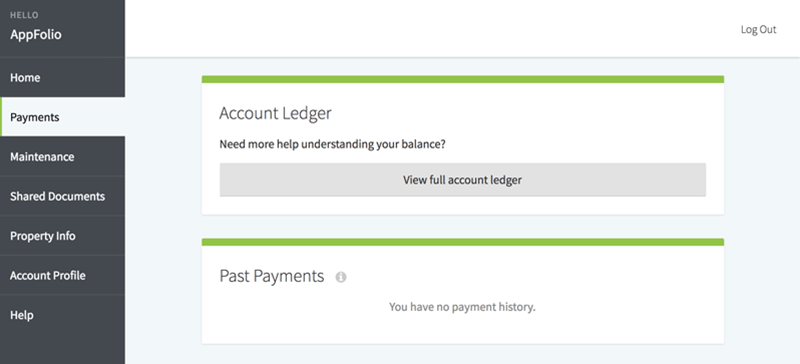
View Payment History
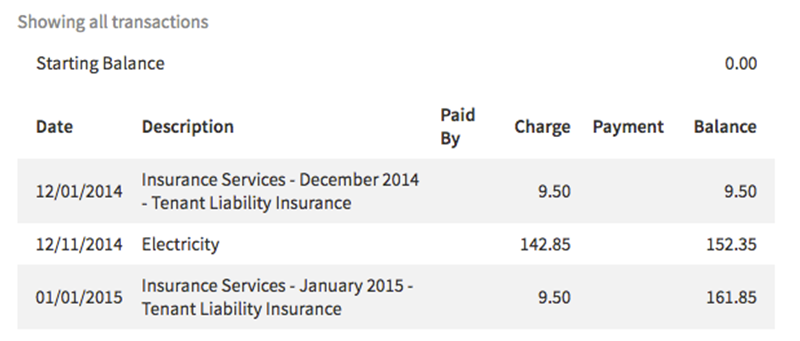
Click the Payments tab → View Full Account Ledger.
For questions, reach out to your property manager.
Payment FAQs
Can I delete saved payment methods?
- Yes—delete them in the Scheduled Payments section.
Are there payment fees?
- eCheck is free. Card payments have a convenience fee.
Is my information secure?
- Yes. The portal uses encrypted, bank-grade security and 24/7 monitoring.
Why can’t I make a payment online?
- Your property manager may not have enabled this feature.
What cards are accepted?
- Visa, Mastercard, Discover, JCB, and Diners Club (no AmEx or prepaid cards).
What bank accounts are accepted?
- Checking or savings accounts (personal or business).
What’s the payment limit?
- The portal displays your limit at checkout. eCheck allows higher payments than cards.
How do payments appear on statements?
- eCheck: “[Your Management Company]”
- Card: “AF* [Your Management Company]”

Account Management
Update Account Details
In the Account Profile tab, you can update:
Email
Phone number
Mailing address
Language preference (English or Spanish)
Contact preferences
Saved payment methods
Password
Digital signature
Deleting Your Account
If your property is no longer managed by GPS Renting, contact us to delete your portal access.
Maintenance Requests
Submit a Request
Go to the Home or Maintenance tab.
Click “Request Maintenance”.
Enter a detailed description, attach photos, and allow manager access if needed.
Click Submit Request.
Contact your property manager if the Maintenance tab isn’t visible
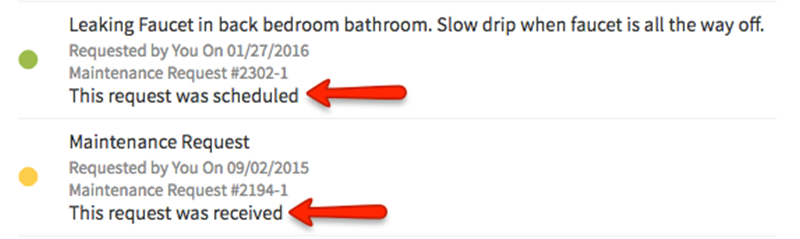
Track Your Request
Check request status in the Maintenance tab:
Status will show as Received, Scheduled, or Completed.
Documents & Approvals
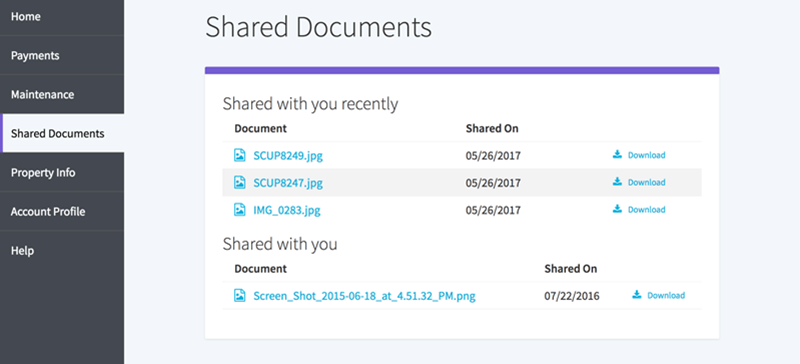
View Shared Documents
Access important documents under the Shared Documents tab.
Email alerts are sent when new files are shared.
View Another Unit
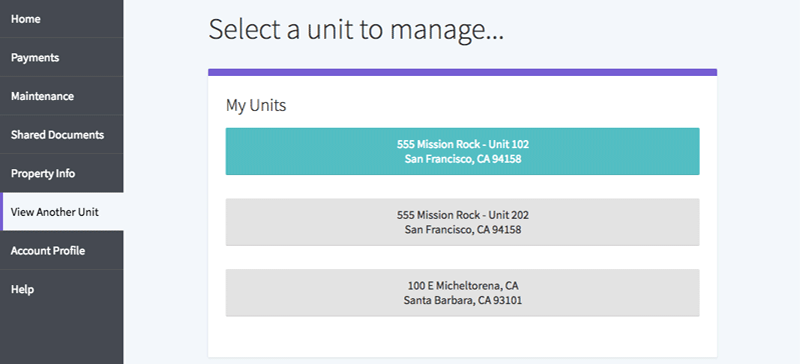
If you rent multiple units:
Click “View Another Unit”
Select the desired unit to manage payments or details.
Units must be under the same management company.
Architectural Review Requests
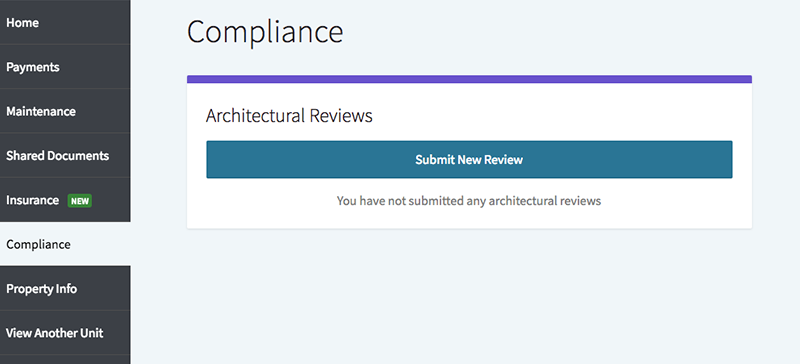
Submit a Review
Go to the Compliance tab → Click “Submit New Review”.
Add a description and upload relevant documents/photos.
Click Submit Request.
Check Review Status
Review status updates appear in the Compliance tab.
Board Members & Invoice Approvals
Add Approval Signature
In the Account Profile tab, add your signature in the Signature On File block and click Save.
Review and Vote
Go to the Approvals tab.
Click “See More Details” on an open item.
Review, comment, and vote.
Comments are not visible to other board members.